Create an email content filter in webmail.
1. Log on SOGo webmail https://webmail.yourdomain
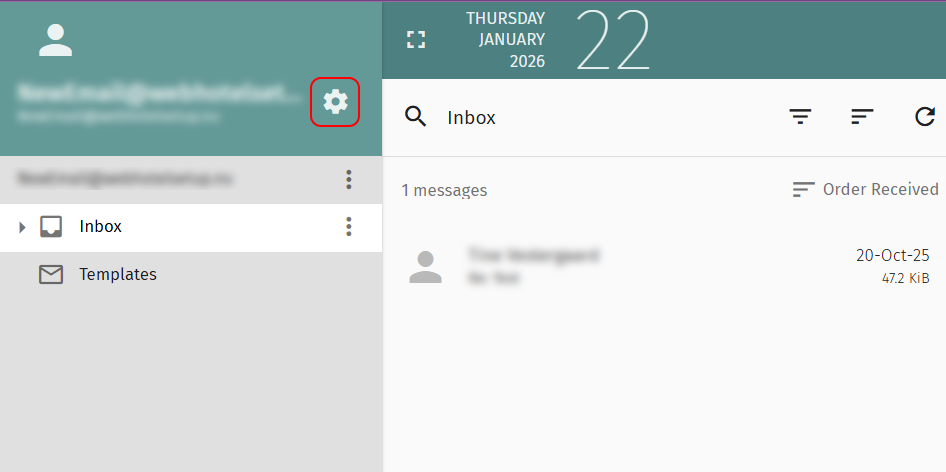
2. Click gear icon in on the left side near to your email address:
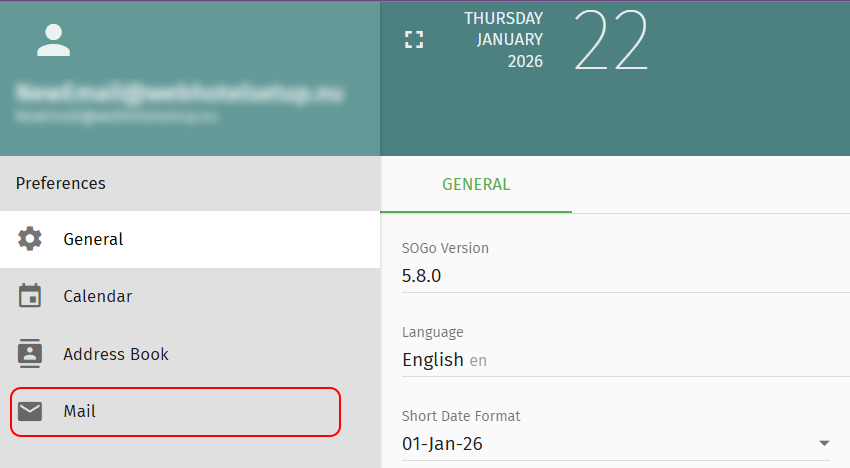
3. Next click on “Mail” link in the left sidebar.
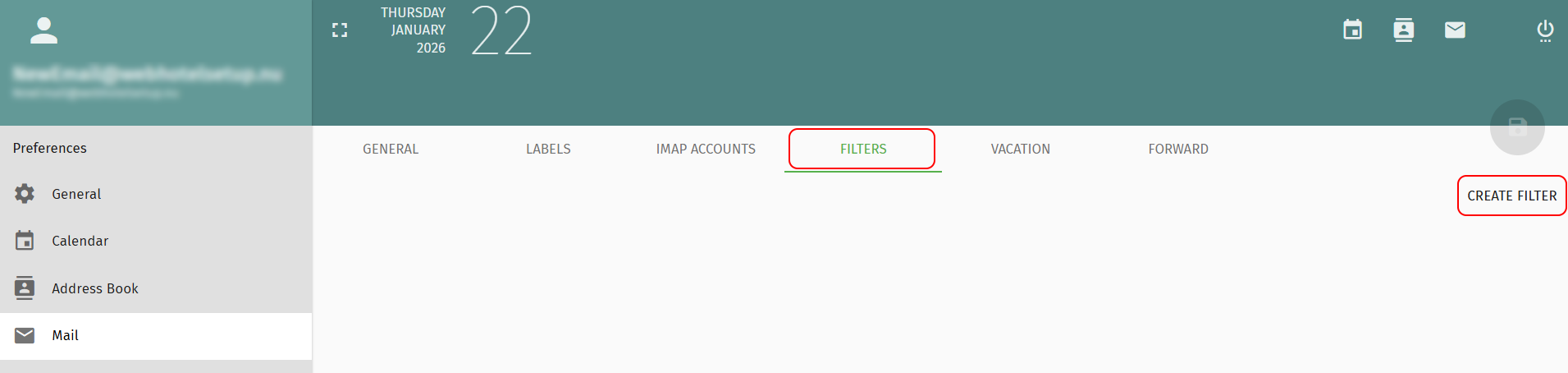
4. Choose the FILTERS link from the top menu and next CREATE FILTER.
You will be able to add regular filters as well filters that will mark automatically messages as Junk.
5. Creation of filters for SPAM:
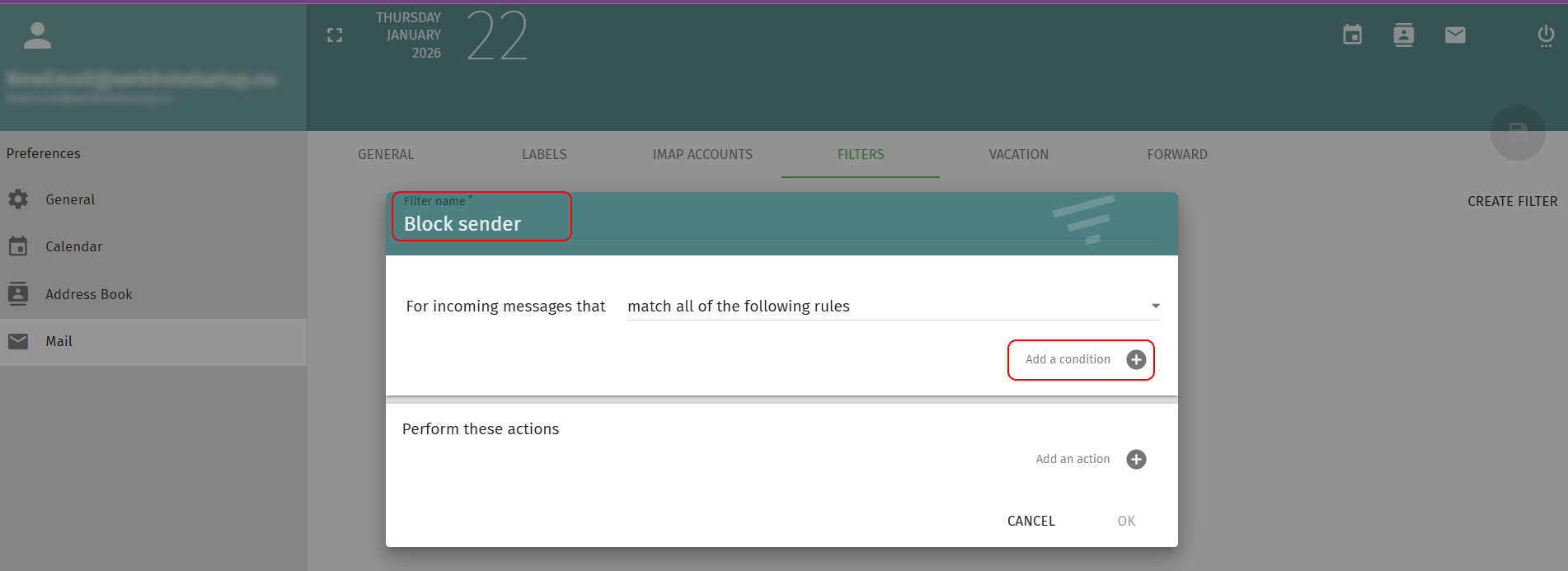
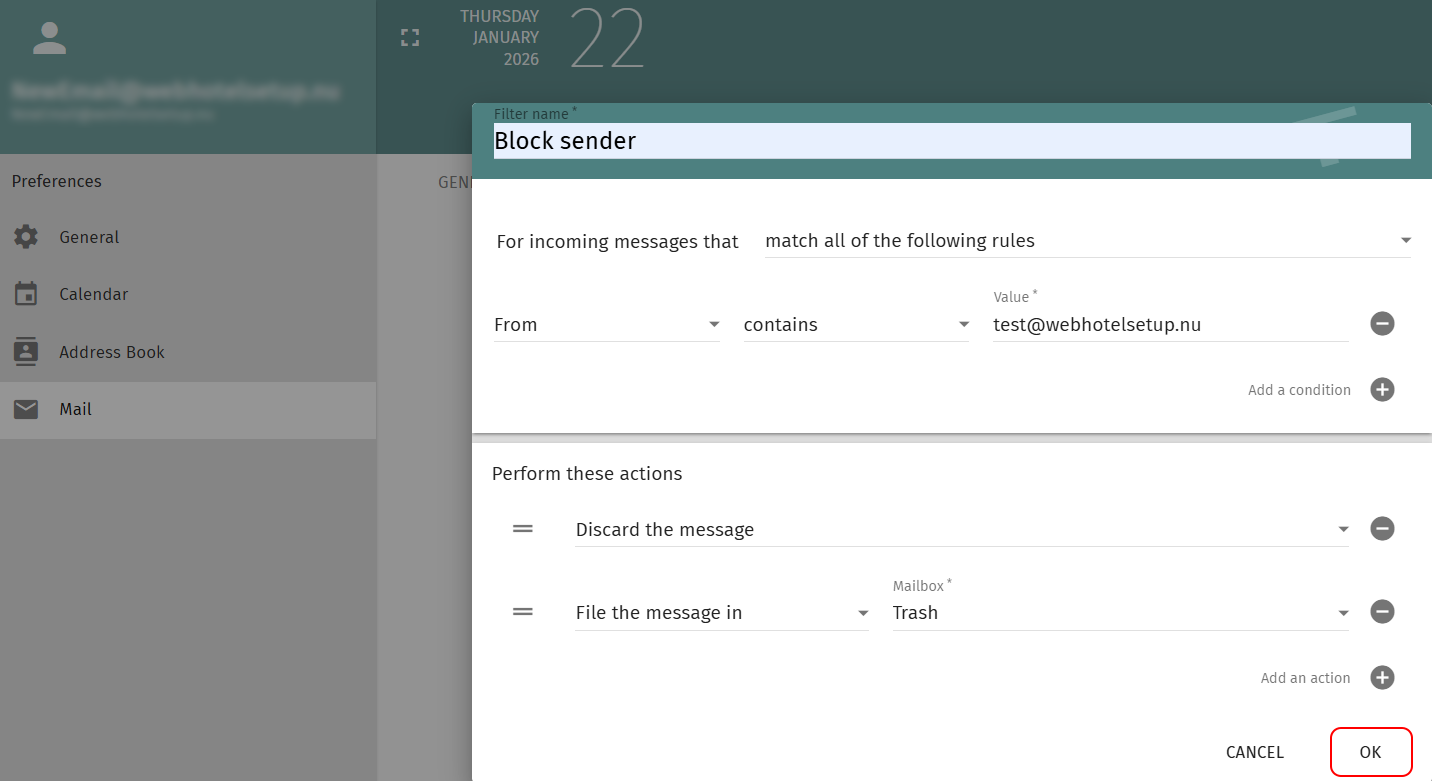
- Name your filter, for example “Block sender [email address]”.
- Click “Add a condition” to create the rule.
- Select the condition type “From” and enter the email address of the sender you want to block.
- Click “Add an action” to specify what happens to emails matching this condition. Choose an action like “Discard” to delete these messages automatically, or “Move to Folder” to redirect them to a folder such as Spam or Trash.
- Click “OK” to finalize the filter setup. Your new filter will now appear in the list of filters.
- Save the filter by clicking the green floppy disk icon to ensure your changes are applied.
Optionally, manage filter activation by ticking or unticking the checkbox next to the filter in the list. A checked box means the filter is active, and an empty box means it is inactive.
Back
Last updated: January 27, 2026 by Web Solutions




 +44 (0) 20 4571 1971
 +45 70 26 20 25
 +48 22 103 18 42